So, you just brought home a brand new Android phone. It’s got that new phone smell and a spotless bright screen that puts a smile on your face. Now what? Well, if you’d like to make your tech feel more like an extension of you, good news. Android phones are especially easy to personalize.
CLICK TO GET KURT’S FREE CYBERGUY NEWSLETTER WITH SECURITY ALERTS, QUICK VIDEO TIPS, TECH REVIEWS, AND EASY HOW-TO’S TO MAKE YOU SMARTER
How to make your Android phone truly yours
You can install new browsers to surf the web, alternate keyboards to type out text messages, or even change the look and feel of your device completely. Since Android is a more open ecosystem than iOS, you have more freedom to customize your phone the way you want.
The benefits of customizing your Android phone
In fact, there are so many things you can do to your new Android phone that it might make your head spin, especially if you’ve never done it before. But there are some things you absolutely should prioritize over others that we can suggest taking care of as soon as your new phone is all charged up.
From making your phone more secure to arranging your apps so they’re easier to get to, these are all great places to start. Here are our suggestions for the first 10 things you should do when you get a new Android phone.
1. Upgrade to the latest version of Android
When getting a new Android phone, make sure the device is up to date. (Cyberguy.com)
Before you start using your new phone, you want to make sure it’s been updated to the newest version of Android. Most of the time, unless you bought one of the newest models out there, it will not be. You’ll need to be running the newest version to be up to date on all security features and to install certain apps. Get this part out of the way early so you don’t have to sit and wait to use your phone later when you might really need it for something.
Settings may vary depending on your Android phone’s manufacturer
- Go to the Settings menu
- Tap on Software Update
- Then click Download and install the update. It will either let you know your software is up to date or you will be asked to confirm the installation.
- You will then be asked to restart your device to apply the update.
After the restart, your device will be running the latest version of Android. Be sure to make a habit of checking for updates going forward.
MORE: HOW TO CHANGE YOUR PRIVACY SETTINGS ON ANDROID
2. Set up unlock pattern for additional security
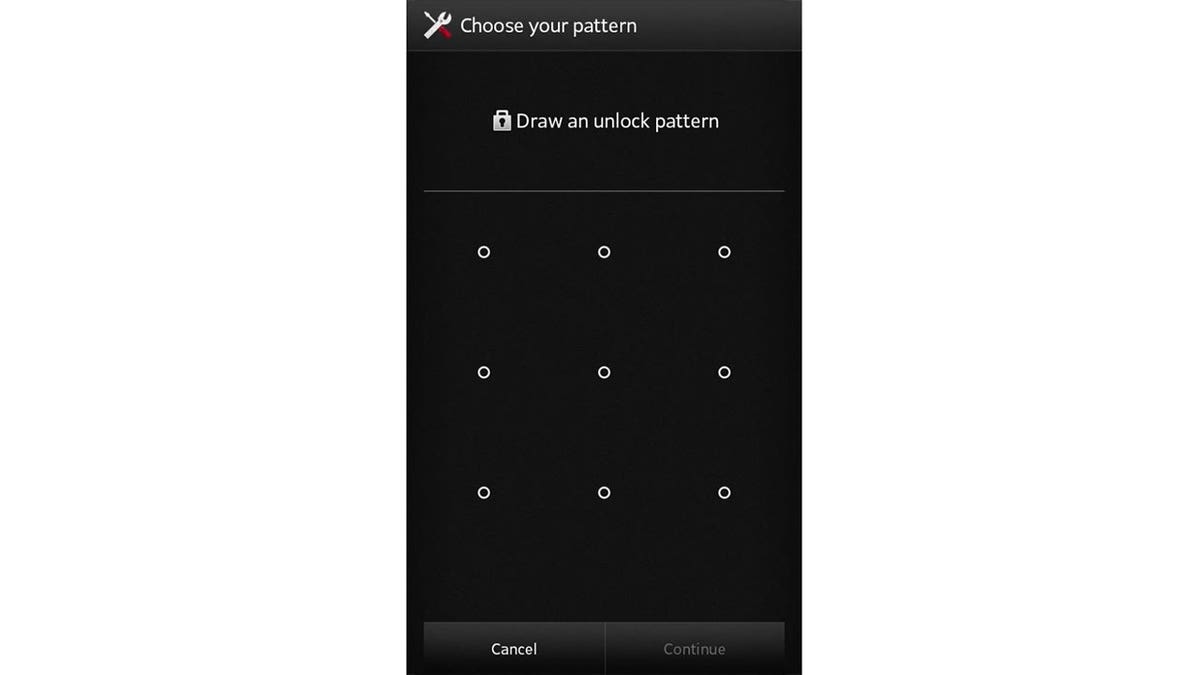
New Android phone users should set up an unlock pattern for security. (Cyberguy.com)
When you first set up your phone, you can use a PIN or even your face or fingerprint to unlock your phone. But you can add another layer of security with a pattern lock.
This has you drawing a pattern between several dots on your lock screen. You can make some pretty elaborate patterns, which makes it difficult to break into your phone. It might also be easier to remember for you than a PIN.
Settings may vary depending on your Android phone’s manufacturer
- Go to your Settings screen
- Tap Lock screen & security
- Choose Screen lock
- Tap the Pattern option
- You’ll have to draw the pattern you want to use to unlock your phone. When you’re satisfied, tap Next
- Once you’ve done that, draw the same pattern again
- Tap the Confirm option
- Choose how you’d like your unlock notifications to show up
- When you’re finished, tap Done.
You may want to leave yourself a note somewhere that’s safe in your home that shows which pattern you need to use to unlock your phone. You don’t want to forget it.
ANDROID USERS AT RISK AS BANKING TROJAN TARGETS MORE APPS
3. Turn on encryption
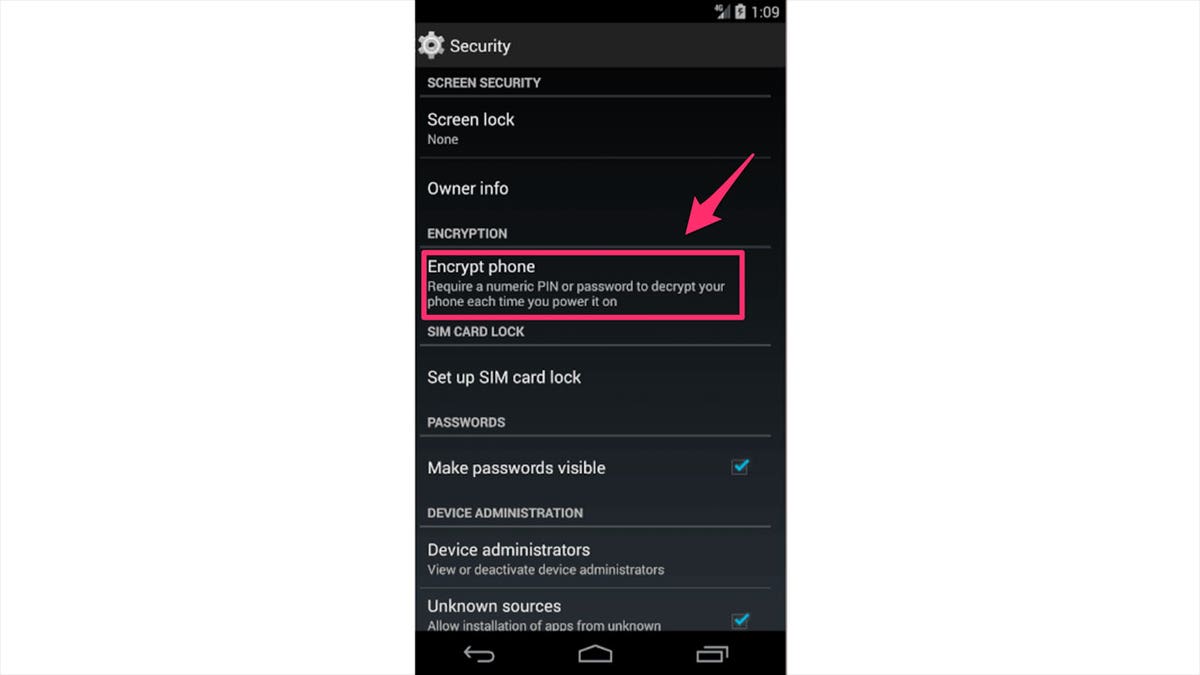
Encrypting a phone makes it more difficult for someone to access personal information. (Cyberguy.com)
When your phone is encrypted, that means all the data on the device is essentially scrambled. It adds a little extra peace of mind that if anyone steals your phone, they won’t be able to access your personal information.
If you bought a brand-new Android phone, chances are you won’t have to worry about doing this. However, encryption may not be enabled by default on some Android phones, depending on the version of the operating system they ship with. Encryption is mandatory for devices that ship with Android 6.0 Marshmallow and above, but optional for devices that ship with Android 5.0 Lollipop and below.
Settings may vary depending on your Android phone’s manufacturer
- First, open your Settings menu from the home screen of your phone
- Choose the Security option
- Tap the Advanced menu option
- Choose Encryption and Credentials if available. You may just have “Encrypt phone” based on which version of Android you’re using
- Tap Encrypt phone. The option may not be available. If not, it’s likely an older device that you don’t need to worry about this option. If you do see it, it may take a bit to finish encrypting. When it’s done, you can just exit out of Settings and go about your business.
You will need to set up a PIN to decrypt your phone every time you unlock it to use it. Be sure you write this code down or keep it in a safe place in the event you forget it. You don’t want to end up losing access to all your stuff.
MAKE THE MOST OF YOUR SUMMER WITH THESE 6 MUST-HAVE APPS
4. Set up your Google account and sync your data
This will allow you to access your contacts, calendar, photos, email and more across your devices. You can also use Google services like Maps, Chrome, Photos, Drive and Pay. To do this:
- Go to Settings
- Then Accounts and backup
- Tap Manage accounts
- Click Add account
- Then tap Google and follow the instructions.
5. Get rid of unnecessary ‘bloatware’ apps
Android phones can come loaded with a variety of apps that you probably won’t ever use. They can take up storage space and make your phone look and feel cluttered. Though you can organize your apps however you want, this might keep you from enjoying your new phone to the fullest. So just get rid of the apps, which we sometimes call “bloatware”, to tidy things up a bit. Here’s how to delete an app.
- Press and hold the app until you see a small menu pop up
- Look for Uninstall and tap it
- Confirm you would like to remove the app by tapping OK.
You can repeat this process for any other apps you don’t need or use. Don’t worry about deleting something important, as your device will not let you uninstall any essential apps. If you change your mind later, you can always reinstall any app from the Google Play Store.
MORE: HOW TO INCREASE THE FONT SIZE ON ANDROID
6. Download some useful apps
There are millions of apps available on the Google Play Store, but some of them are more essential than others. Depending on your needs and interests, you may want to download apps for weather, news, productivity, creativity, entertainment, social media and more. To download an app on Android, you can follow these steps:
- Open the Google Play Store on your phone. It’s the icon that looks like a multicolored sideways triangle in your app list
- Type an app name or keyword into the search box at the top of the screen.
- Tap the Search key that looks like a magnifying glass at the keyboard’s bottom right corner
- Select an app from the search results. This brings you to the details page, where you can read the app’s description, check out user reviews, and view screenshots
- Tap INSTALL if the app is free, or tap the app’s price if it is not. You may have to enter your Google account password and payment details if you are buying an app
- Tap OPEN when the installation is complete. This will launch your new app for the first time.
7. Organize your apps into folders
Once you start downloading and adding apps to your new phone, it can get cluttered fast. Luckily, you don’t have to keep all your apps bunched up across multiple pages. Here’s how to make a folder:
Settings may vary depending on your Android phone’s manufacturer
- Press down on the app you want to move around
- Drag it on to the top of another app
- A folder should automatically appear
- You can choose to give it a name by tapping the top line where it says “Untitled.”
You can make as many folders as you want this way. To add other apps to the new folder, just hold and drag each one to the folder of your choice.
8. Customize your home screen and app drawer
You can change the wallpaper, widgets and app layout of your home screen to suit your preferences.
Settings may vary depending on your Android phone’s manufacturer
To change your wallpaper: Long-press on an empty area of your home screen and select Wallpaper & style. From here, you can choose a new wallpaper from your device’s gallery or from the provided options.
To add widgets: Long-press on an empty area of your home screen and select Widgets. You can then browse through the available widgets and drag the one you want to your home screen. Widgets are small apps that display information or perform functions without opening the full app.
To change your app layout:
- Long-press on an empty area of your home screen. This will bring up a menu at the bottom of the screen.
- Tap on Home screen settings. This will open a new screen with various options to customize your home screen.
- Tap on Home screen grid or Apps screen grid depending on which one you want to change. This will show you different grid sizes to choose from, such as 4×5, 4×6, 5×5 or 5×6.
- Select the grid size that suits your preference. You will see a preview of how your app icons will look like with the selected grid size.
- Tap on Save to confirm your choice. This will change the layout of your app icons on your home screen or apps screen.
To hide apps that you don’t want to see on your home screen or apps screen:
- Long-press on an empty area of your home screen and tap on Home screen settings.
- Tap on Hide apps. This will show you a list of all the apps installed on your device.
- Select the apps that you want to hide by tapping on them. You will see a check mark next to the selected apps.
- Tap on Done. This will hide the selected apps from your home screen or apps screen.
GET MORE OF MY SECURITY ALERTS, QUICK TIPS & EASY VIDEO TUTORIALS WITH THE FREE CYBERGUY NEWSLETTER – CLICK HERE
9. Enable dark mode and adaptive brightness
Dark mode can save battery life and reduce eye strain by making the background of your phone darker. Adaptive brightness can automatically adjust the screen brightness based on the ambient light. To enable these features:
Settings may vary depending on your Android phone’s manufacturer
- Go to Settings
- Then click Display
- Toggle on Dark mode.
MORE: HOW TO REMOVE MALWARE ON AN ANDROID
10. Install antivirus protection
Antivirus software can help protect your new Android phone from malware, phishing and other threats. Android devices are more vulnerable to these types of attacks because of their open-source nature, which allows you to customize your device and install software from various sources, including third parties. Also, Android has a larger market share than other phones, which makes it more attractive and accessible for hackers.
The best way to protect yourself from having your data breached is to install antivirus protection on all your devices. Having good antivirus software on your devices will alert you of any known malware that is targeting you, warn you against clicking on any known malicious links in phishing emails, and ultimately help protect you from being hacked.
Get my picks for the best 2023 antivirus protection winners for your Windows, Mac, Android & iOS devices.
Key takeaways
You should customize your new Android phone as soon as you have the chance. And there are especially some urgent changes we recommend doing as soon as you turn your new device on. That includes encrypting your phone, making folders to organize your apps, paring down the bloatware, upgrading to the latest version of Android, and installing strong antivirus protection.
What do you do to customize your device the very first day you get a new phone? Let us know by writing us at Cyberguy.com/Contact.
For more of my tech tips & security alerts, subscribe to my free CyberGuy Report Newsletter by heading to Cyberguy.com/Newsletter.
Answers to the most asked CyberGuy questions:
Copyright 2023 CyberGuy.com. All rights reserved.
Kurt “CyberGuy” Knutsson is an award-winning tech journalist who has a deep love of technology, gear and gadgets that make life better with his contributions for Fox News & FOX Business beginning mornings on “FOX & Friends.” Got a tech question? Get Kurt’s CyberGuy Newsletter, share your voice, a story idea or comment at CyberGuy.com.